8 Useful Ways to Configure Your Zsh History
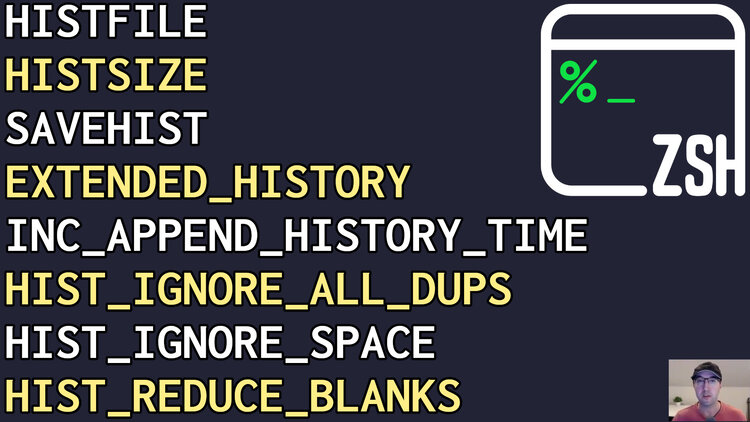
Being able to search your shell history is important, this will help you control where and how your commands get saved.
Prefer video? Here it is on YouTube.
TL;DR:
# .zshrc file history related settings.

export HISTFILE="${XDG_CONFIG_HOME}/zsh/.zsh_history"
export HISTSIZE=50000          # History lines stored in memory.
export SAVEHIST=50000          # History lines stored on disk.
setopt EXTENDED_HISTORY        # Save history with timestamps.
setopt INC_APPEND_HISTORY_TIME # Immediately append commands and track duration.
setopt HIST_IGNORE_ALL_DUPS    # Never add duplicate entries.
setopt HIST_IGNORE_SPACE       # Ignore commands that start with a space.
setopt HIST_REDUCE_BLANKS      # Remove unnecessary blank lines.
I’m constantly searching through my history with CTRL+r using fzf. The above
helps access your history over an extended period of time but also helps gain
insights about how commands were run.
Besides finding a specific command, it helps answer questions like:
- When was the last time I ran this command?
- How long did it take to run this specific command?
Everything we’re about to cover here is included in DotFriedRice, so if you’re using that project you’re already good to go.
# HISTFILE
export HISTFILE="${XDG_CONFIG_HOME}/zsh/.zsh_history"
I like to follow the XDG specification when possible and don’t want to pollute
my home directory with a bunch of shell configuration so I keep everything zsh
related in $XDG_CONFIG_HOME/zsh. The only exception is I have ~/.zshenv
which has export ZDOTDIR="${XDG_CONFIG_HOME:-"${HOME}/.config"}/zsh" so zsh
knows where to look.
# HISTSIZE / SAVEHIST
export HISTSIZE=50000 # History lines stored in memory.
export SAVEHIST=50000 # History lines stored on disk.
It’s ok to splurge a little disk space and memory. For context on my machine, after 6 months of heavy terminal usage I have 4,937 items and it’s 245kb of disk space. At my current pace, 50k would be about 5 years of shell history coming in at under 2.5mb.
It’s likely even much longer than that because duplicate commands aren’t being saved so all of those common commands I ran initially won’t be saved again.
If I ever get close to hitting 50k then doubling it to 100k wouldn’t be a problem.
The reason I haven’t set it to something really high like 500k is because I haven’t tested the implications of having that much shell history, it’s mainly because of 2 reasons:
- Your history will get read into memory every time you open a new shell and I want to make sure opening a new shell feels very fast
- I use a zsh plugin that shows virtual text to auto-complete commands which does read your history and I want to make sure input latency when typing is effectively instant
Even on my machine from 2014, I feel no delay yet. I don’t know what will happen after 50k let alone 500k items. I’m not convinced I’d even hit 500k unique items in multiple life times on a desktop machine with a super heavy terminal based workflow. I’ll make sure to revisit this post if / when I approach 50k.
# EXTENDED_HISTORY
setopt EXTENDED_HISTORY # Save history with timestamps.
Knowing when you last run a command is quite helpful when troubleshooting. For example, maybe you ran a command to modify a udev setting and now you’re noticing side effects but you want to know exactly when that setting was applied because you want to compare it against logs you discovered elsewhere.
This is handy on desktop machines but it’s very useful on servers too and Bash supports a similar option in case you’re not using zsh on your server.
If you’re concerned about disk space, don’t sweat it. The timestamp metadata only adds about 1.2mb of space per 100,000 items.
Here’s what that timestamp metadata looks like with a command:
: 1780151606:28;man history
It’s actually quite clever. It starts with : because that’s a built-in null
command that supports any number of arguments. Then the Unix timestamp is
passed in for when the command was run with the duration in seconds after that.
The semi-colon (;) is used to split out the real command from your history.
In my case I was looking at the history’s manual for 28 seconds.
It’s clever because if you copy / paste that entire line into your shell it
will open the man pages for history because the metadata will do nothing.
Really cool pattern! Using a comment # wouldn’t have worked because that
would comment out the commend too.
Viewing your extended history:
history: Show your history like usualhistory -i: Show your history with timestampshistory -D: Show your history with durationhistory -iD: Show your history with both timestamps and duration
If time is something you want to filter on you can run history -i 1 to show
all of your history with timestamps.
You can do things like history -i 1 | fzf to fuzzy search it in fzf or
history -i 1 | grep 2026-06- to filter out history items for a specific month.
# INC_APPEND_HISTORY_TIME
setopt INC_APPEND_HISTORY_TIME # Immediately append commands and track duration.
As soon as your command finishes running, it’ll get written out along with how long it took to run. Knowing the duration is a quality of life enhancement.
With that said, if you have 2 terminals open (A and B), if you run a command in
terminal A, its history won’t be automatically be put into terminal B’s
history. If you want A’s history in B right now you can run fc -IR in B.
That’ll load all commands from your history file (-R) that aren’t already
loaded (-I) in your current shell on demand.
# HIST_IGNORE_ALL_DUPS
setopt HIST_IGNORE_ALL_DUPS # Never add duplicate entries.
Let’s say you run whoami 2 times. On the first command, it will get appended
to your history. On the second command, zsh will notice it already exists,
delete all instances of it and append it to end of your history. This way you
always end up with the latest time you ran that command with the latest
timestamp.
The uniqueness check is on the full command with all arguments. For example
echo hello and echo world will produce 2 entries.
This means unique cd paths will be included which is handy since their
arguments are different. I often run cd then press CTRL+r and use fzf to
narrow down paths. I’ve written about this pattern before.
# HIST_IGNORE_SPACE
setopt HIST_IGNORE_SPACE # Ignore commands that start with a space.
I love this setting. It lets you run 1 off commands you don’t want saved to your history by starting the command with 1 or more spaces.
This could be a long multi-line shell script to test something that you don’t want cluttering your history or anything you want. Maybe it’s a file path that contains private information (client information, etc.).
# HIST_REDUCE_BLANKS
setopt HIST_REDUCE_BLANKS # Remove unnecessary blank lines.
This helps keep your history clean by squishing multiple adjacent spaces into 1 space. It also removes trailing whitespace and other unimportant blank characters.
These are only the settings I use. You can check Zsh’s manual for shell history.
The video below covers some of these being used in a terminal.
# Demo Video
Timestamps
- 0:36 – HISTFILE
- 1:31 – HISTSIZE / SAVEHIST
- 4:27 – EXTENDED_HISTORY
- 8:01 – INC_APPEND_HISTORY_TIME
- 9:37 – HIST_IGNORE_ALL_DUPS
- 11:16 – HIST_IGNORE_SPACE
- 13:00 – HIST_REDUCE_BLANKS
- 13:39 – The manual has more options
- 14:00 – Sharing your history between terminals
How do you have your zsh history configured? Let me know below.