Configure Walker So You Can Move It with Your Mouse in niri
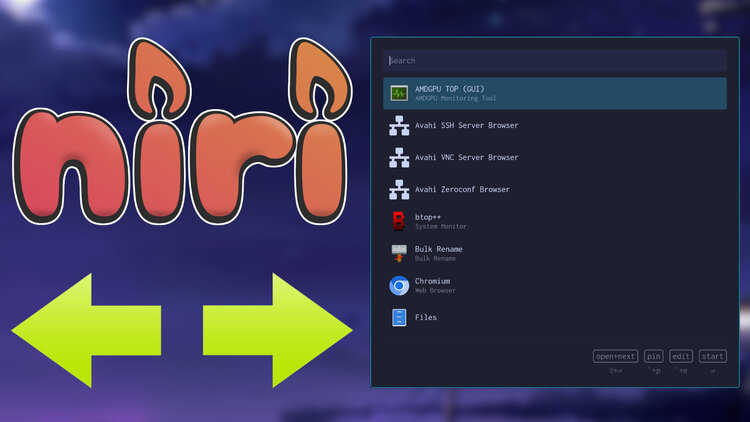
We'll transform Walker to be a floating window instead of a layer so it can be focused and moved around like any other window.
I use Walker for a lot of things such as launching apps, quickly jumping to niri windows, multiple clipboards, picking emojis and a calculator.
By default Walker launches with the following properties:
- It spawns in the middle of your monitor
- It’ll be on top of every other window as a layer
- It can’t be moved with the mouse
- If you mouse click outside of Walker, it closes
In most cases that’s fine, but sometimes Walker will block being able to see a window behind it and compositors don’t support moving layers with your mouse so your only option is to close Walker, re-position the thing you want to see and launch Walker again.
For me, it mostly comes up with using the calculator where you might want to see or copy a number from another window.
The good news is, Walker can be configured to open like a regular window instead of a layer which then allows you to configure niri / Hyprland or other compositors to have Walker open floated by default.
For Walker, you can add as_window = true in .config/walker/config.toml. It
defaults to false which makes it open as a layer. Windows and layers are
different things. You can run niri msg windows and niri msg layers to see
the difference.
For niri, you can add this to your config:
window-rule {
    // This app id was found by running `niri msg windows` when Walker is
    // open. Keep in mind I run Walker with `--gapplication-service`.
    match app-id=r#"^dev\.benz\.walker$"#
    open-floating true

    // This is optional, but I wanted Walker to keep its normal themed look and
    // not end up having a double border.
    focus-ring {
        width 0
    }
}
I’ve already added this to DotFriedRice.
This is great because it lets you move the window around however you see fit.
You can still close Walker like normal by hitting escape or picking your selection, however you won’t be able to close it by clicking anywhere outside of Walker with your mouse. But, IMO that’s a good thing because now it means you can keep Walker open and switch between it and another app at your discretion which is perfect for copy / pasting into Walker when using the calculator.
The video below shows the before and after.
# Demo Video
Timestamps
- 0:21 – Why I like this
- 1:04 – One behavior change as a window vs layer
- 1:54 – Configuring Walker and niri to do this
- 2:42 – Getting Walker’s app ID
- 3:13 – Removing the focus ring
- 3:57 – Showing Walker’s default behavior as a layer
- 4:49 – It’s a worthy change IMO
- 5:08 – The calculator got a recent update
Have you made this config change to your Walker set up? Let me know below.