Custom dmenu / fzf Picker to Set Your Timezone with Geolocation
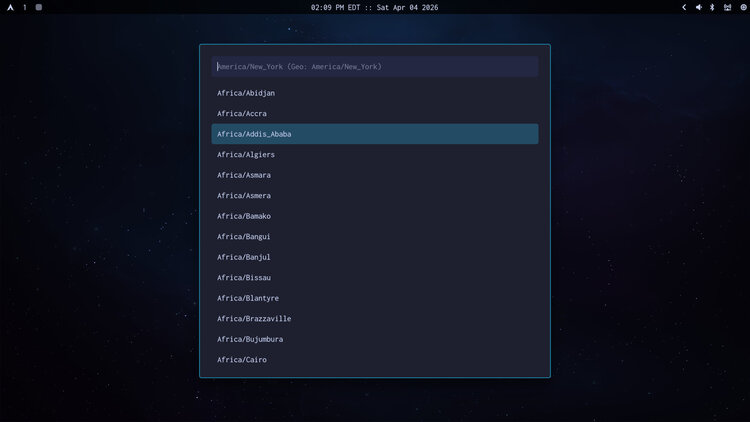
I wanted a fast and dependable way to set my system's timezone when traveling to new places with a laptop running Linux.
I sometimes travel to cities and countries where I don’t know which timezone name to look up and set.
Even within the US, you often don’t set the timezone to the true city you’re in
because there isn’t a timezone entry for it. For example you’d likely choose
America/New_York even if you’re in New Jersey. This goes for a lot of places
on the east coast. The same applies all across the US and the world.
# Doing It by Hand
You have a few options:
- Google around for which timezone entry to set ahead of time:
- Put it into a text document so that when you arrive at your destination you can set it
- Set your system to use it right before you leave so it’s already set when you arrive
I don’t like either of those options. Of course you can do the lookup there after you arrive too, it’s basically the same. In all cases you have to look things up manually and then set it.
# Geolocation Services
To help solve the above problem you can use geolocation services which look at your IP address and based on your latitude and longitude it will return back an appropriate timezone value to set.
This comes with its own set of problems to fully depend on as a source of truth:
- It might not be accurate, especially if you’re using a VPN
- Some geo sites require signing up or paying to access this information over their API
- Some geo sites rate limit you pretty quickly with their free API
- The geo site might be down for maintenance or your network might not be working
# Life Is Short
In both of the above cases you have to remember the timedatectl command to
run to set it and hopefully you enter a correct value. Then you might need to
reload your status bar so the time gets updated.
This is something I might do twice a year when I travel but I’m a developer. That means I’ll spend an hour creating a script instead of manually looking up and setting my time zone which might take 60 seconds.
If I travel twice a year and I’m investing 2 minutes of my life into the
workflow per year, and if I’m fortunate enough to travel like this for another
30 years that’s 2 (minutes) * 30 (years) = 60 (total minutes) wasted doing
this absolutely agonizing and excruciating workflow by hand like a barbarian.
This is one of those rare times where it makes sense to automate it. At least that’s what I told myself. :D
# Best of Both Worlds
What if we can achieve:
- Run the script to pop open a menu (dmenu, Walker, fzf or whatever you want!)
- See a complete list of valid timezones to choose from, straight from your OS with no network calls
- Set the placeholder to your current timezone as a reminder
- Optionally get geolocation assistance (no sign up needed) and if you’re not rate limited, instead of picking it automatically it gets appended to your placeholder with a helpful label
- This is thanks to https://ipconfig.io for allowing free access
- Fuzzy search for the tz you want to set, select it and hit enter
- Your timezone gets set to it and your status bar gets reloaded
- Even without prompting you for your password with sudo
- Have it runnable as a script but also assigned to any action you want
- For example in my dotfiles I have it set up to show when I middle click my clock
This can all be arranged in a few lines of shell script. We can also have it
work with dmenu, fzf or any tools that support text being piped into it. For
example I’m using Walker and it has a --dmenu flag.
If you’re using my dotfiles you’ve had
this available for months with the dot-tz-set script. Here’s a more heavily
commented version of the script in case you want to modify it for your needs if
you’re not using my dotfiles:
#!/usr/bin/env bash
# Set the timezone.
#
# Examples:
#   dot-tz-set        # pick your timezone without geo assistance
#   dot-tz-set --geo  # pick your timezone with geo assistance

set -o errexit
set -o pipefail
set -o nounset

flag="${1:-}"
configured_tz="$(timedatectl show --property=Timezone --value)"
placeholder="${configured_tz}"

# Instead of fully depending on an auto-geo lookup which could be wrong or rate
# limited, offer assistance by setting the placeholder to a geolocated value.
#
# This is handy when you're traveling and might not know which timezone value
# to pick because the city, state or country you're in isn't included.
#
# If you're rate limited or it times out, you'll get no assistance which is ok.
if [ "${flag}" == "--geo" ]; then
  geo_tz="$(curl --silent --fail --max-time 3 https://ipconfig.io/json | jq --raw-output ".time_zone" || echo "N/A")"
  placeholder="${placeholder} (Geo: ${geo_tz})"
fi

# Use Walker's --dmenu option (this is what I do).
tz="$(timedatectl list-timezones | walker --dmenu --placeholder "${placeholder}")"

# Use fzf instead.
# tz="$(timedatectl list-timezones | fzf --ghost "${placeholder}")"

# Use dmenu instead.
# tz="$(timedatectl list-timezones | dmenu -p "${placeholder} > ")"

# This requires making a sudoers entry so you can run timedatectl without sudo.
# My dotfiles already do this for you.
#
# Run this once if you're not using my dotfiles:
# echo "${USER} ALL=(ALL) NOPASSWD: /usr/bin/timedatectl" | sudo tee /etc/sudoers.d/dot-timedatectl
sudo timedatectl set-timezone "${tz}"

# This is specific to my dotfiles, it just reloads waybar and sends a notification.
dot-reload-app waybar
notify-send "Timezone set to ${tz}"
After running it, if you set a new timezone you can confirm it in your journal logs:
$ journalctl --boot --grep "Changed time zone"
Apr 04 13:15:29 kaizen systemd-timedated[924352]: Changed time zone to 'America/New_York' (EDT).
Back in 2019 when I tried to switch to native Linux on the desktop but got blocked by my hardware not being fully compatible I had a theory using Linux would shape my mindset. I’ve always used WSL on Windows and VMs running linux before that but it’s not the same.
In the last 3 months of using native Linux I’ve had the best time molding my OS into an environment that helps me be more productive but more importantly makes me happy to use.
This script is one of those examples. I had a problem and barely 1 hour later I had a fully tricked out solution that works exactly how I want it to, it’s easy to modify, easy to share and it could be helpful to others. Now if I see an opportunity to improve my workflow, I do it. It feels exactly how an operating system should be. It lets me operate my system instead of harassing me and constantly reminding me of how thoughtless it is.
The demo video below shows the script in action.
# Demo Video
Timestamps
- 0:53 – Why?
- 1:24 – Doing it by hand
- 1:50 – Geolocation services
- 2:22 – Life if short
- 3:12 – Best of both worlds
- 5:18 – Getting geo rate limited
- 5:53 – Going over the script
- 9:35 – Switching out Walker for fzf or dmenu directly
- 11:17 – Updating your sudoers to let timedatectl work without sudo
- 12:38 – Using journalctl to confirm your tz was set
- 13:16 – Linux on the desktop is amazing
How do you set your timezone? Let me know below.