Day to Day Window Management Workflows and Why I Picked niri
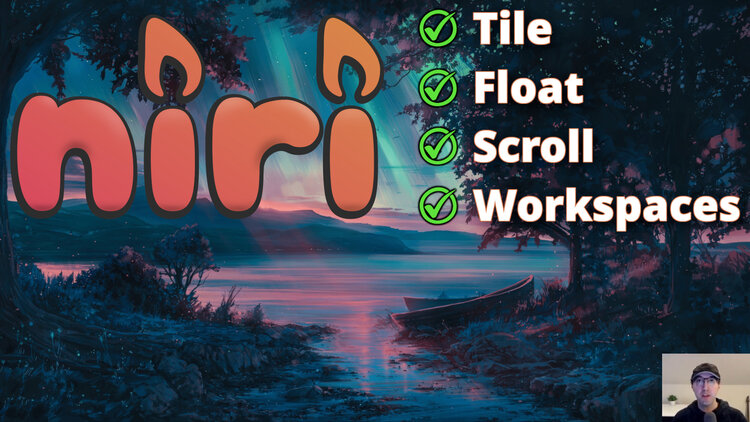
We'll cover a few things I encounter while wanting to arrange and access windows. Nothing is that unique honestly!
Want to jump to the demo video? Here it is.
We all have pretty similar “wants” right? These are high level objectives and typically apply to any environment you’re working with (Linux, Windows, macOS, etc.):
- Open and close apps quickly
- Find what’s open quickly
- Switch to apps quickly
- Arrange windows in ways that make you productive
- Whenever possible, make this feel seamless and have it “just work”
- Be adaptable and flexible with how you run and use apps
- Easily do 1-off things that break the rules of what you usually do
- For example:
- Make this one window float instead of tile or vice versa
- Center these 2 windows together
- Modify the size of this window so it fits just right
- Put this window over here if this other app is open
- For example:
I’m sure the above list can be expanded on but really all of it boils down to “let me do the thing I want to do in the easiest and most predictable way possible and if it cannot be done quickly in an ad hoc way then make it easy to script”.
# Operational Burden as a Human
There’s definitely this idea of operational burden draining your energy.
It’s why learning Vim initially can feel tough because instead of “just editing”, your brain is occupied by trying to remember a 100 Vim specific things at the same time. The same can be said about any other non-trivial tool (video editor, using Excel well, etc.).
Eventually when things become muscle memory and you don’t have to actively think about it, you’re moving at the speed of thought which is a wonderful feeling. It feels like magic.
The same thing applies to using your operating system, or more specifically arranging and accessing windows. It can feel like a literal drag if you’re constantly dragging things around to position them instead of focusing on what you want to do.
You know how it is:
- Drag this over here, it’s not quite aligned but it’s good enough
- You want this window always on top of an another but only sometimes
- You’ve opened another app but you don’t want it full screen, but you also don’t want to be distracted by the other visible apps so you manually minimize them all
- At the same time you want to quickly be able to get back into the zone for the other apps as needed
There’s all sorts of ways to solve the above problems but the takeaway is the more you need to think and perform manual actions to solve them, the more annoying and tedious it is.
To be fair, you also have to think “is this really the bottleneck / problem?”. Sometimes it is, sometimes it isn’t. I just know from ~25 years of using computers, you may not realize it’s a problem until you’ve experienced what not having the problem feels like.
It’s like chronic pain. You might be used to it but once it’s gone you’re like how the hell did I ever live with this before?
# Tiling, Floating, Scrolling and Workspaces
These 4 things together give you a bunch of ways to help you arrange and access windows. You can think of them as tools:
- Tiling: See multiple windows at once without them overlapping, typically they get sized to fit your desktop or a region of your desktop
- Floating: Place windows anywhere, even on top of other windows
- Scrolling: Treat your desktop as an infinite horizontal plane which can be broken up into columns so you can cycle between windows
- Workspaces: Provide additional desktops that have their own windows which you can switch between
It’s interesting at how relatable the above maps to real life concepts. Imagine each window as a piece of paper and a desk as your desktop.
You can arrange these pieces of paper next to each other (tiling) or stack them (floating). A new workspace is like having a separate desk. Scrolling lets you have a huge desk and you get to control what part of the desk is currently in view.
All 4 tools can be combined together if your window compositor supports it.
# niri, Hyprland or KDE Plasma?
A decision point to think about when choosing a window compositor (niri, Hyprland, etc.) is which of the 4 tools listed above do you value most?
- If you want everything to tile by default and your desktop shrinks for each app you have open then maybe Hyprland is what you want
- If you want a huge scrolling desktop where you get to control when windows are tiled then niri is a great fit
Another option is neither and go with KDE Plasma which floats everything by default but gives you options to tile things on demand. This is an excellent fit if you don’t want to muck around with building up your own desktop environment from the ground up. You’ll have a completely reasonable and fully working environment that’s highly customizable too.
Having used a bunch of different environments over the years, I’ve landed on niri.
It fits my style the best and it’s quite adaptable. It’s also stable and efficient. Beyond its technical features there’s other things I like too, such as the author is really helpful.
# niri Is Flexible and Adaptable
Earlier in this post I mentioned things like flexible, adaptable and being able to perform 1-off tasks for whatever ad hoc workflows you might have.
I can’t cover everything it does but here’s a few examples / tips. These are things you might want to configure if you have custom workflows you want to do where the default operation of opening a window doesn’t do exactly what you want.
Resize and Position Floating Windows
If you wanted to make the currently focused floating window 800x600 in size and then position it to 400,400 on your desktop you can do that with:
niri msg action set-window-width 800
niri msg action set-window-height 600
niri msg action move-floating-window -x 400 -y 400
You could roll this up into a script if you want to resize and position things on a regular basis and also create niri key binds as you see fit.
In the past on Windows (the OS), I’ve used tools like Sizer to do the above but now it’s built into the compositor.
If you have a specific app you always want to open like that by default you can do that too with niri’s window rules which is a good segue into the next topic.
Make Specific Windows Act and Look Differently
niri has all sorts of window rules to say things like “if an app matches this title, then make it open over here or at a specific size, etc.”.
The docs cover a lot of options. You can even go deep into customizations like having specific apps open at different opacities with custom borders.
Scriptable
The niri msg ability is huge as it gives you a way to programmatically send commands to niri. That’s how I wrote a general purpose output scaling script. You can also listen to events and react to them as needed.
All in all, this lets you create workflows for whatever you’re doing.
The video below demos a few practical use cases on how I use niri in my day to day. It ties all of these concepts together.
# Demo Video
Timestamps
- 0:52 – Let me easily do things
- 1:59 – Reducing operational burden
- 3:43 – Tiling, floating, scrolling and workspaces
- 4:57 – niri vs Hyperland vs KDE Plasma
- 6:05 – niri is flexible and adaptable
- 8:29 – A slightly bigger centered browser
- 10:15 – Writing a blog post with live previews
- 12:59 – Code editing
- 15:26 – Video editing with floating windows
- 17:44 – Image editing for thumbnails
- 19:20 – Fuzzy find and focus specific windows
- 20:31 – Scripting your own window focuser
- 22:29 – The overview is also nice for finding windows
- 23:00 – Using your computer normally
- 24:22 – Skimming window rules
- 25:40 – Named and assigned workspaces are available
How do you manage your windows? Let me know below.