mpv Is the MVP of Video and Image Viewing
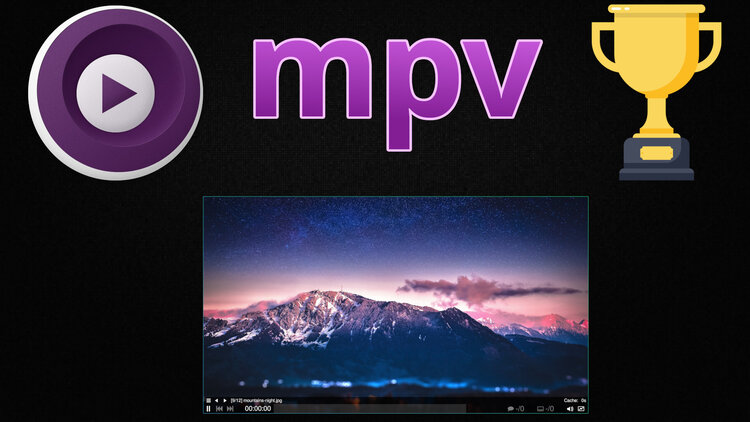
Since I switched to native Linux, I really missed IrfanView for image viewing but mpv is filling that gap quite nicely.
Want to jump straight to the demo video? Here it is on YouTube.
It’s hard to believe I was using IrfanView on Windows since the early 2000s and it did so many nice things with its UI for image viewing. I was disappointed switching to native Linux because I found nothing close to it. XnView almost did it but it never felt right and was buggy.
Since I switched to Linux, I did go with mpv instead of vlc for videos and I like mpv’s approach for viewing videos. I randomly decided to try opening an image and discovered mpv can open them no problem.
That led to tweaking a few config options and 15 minutes later I accidentally stumbled on a hidden treasure. mpv is a top tier media viewer for both videos and images. It’s also cross platform (Linux, macOS and Windows).
# Opinions and Expectations
Besides opening very quickly and using minimal resources here’s a few things I care about.
When it comes to viewing videos, I’m not too picky:
- A / B loops to loop between 2 points in a video
- Move +/- 1 frame with a key bind
- Cycle playback speed
- Toggle subtitles
- Toggle full screen
When it comes to viewing images, I’m really picky, most of these apply to videos too:
- Minimal window decorations to maximize space for viewing media
- Ability to open more than 1 copy of the app to view multiple pieces of media
- Size window to the size of the media
- If media is bigger than the display, auto-scale to fit based on display height
- Scale / resize the window
- Zoom into the media without adjusting the window size
- Dynamically crop the media when resizing the window horizontally
- …and make it easy to pan around different parts of the media
- When opening any media through a file manager:
- Be able to goto the previous and next media, wrapping around if at the end
- If an image was opened, only cycle images
- If a video was opened, only cycle videos
- Play animated GIFs
- Get the stats of the media (resolution, file size, codec, etc.)
- Rotate in 90 degree increments and be able to horizontally flip media
What about basic image manipulation?
For things like resizing images I’ve written shell scripts that take care of
this using ImageMagick. For example, here’s a
convert
script from my dotfiles that lets you do things like convert img2jpg hello.jpg -resize 50%.
Most of the time if I’m resizing something I know what size I want. For example
my blog post cards are 750x422. I used to resize them in IrfanView. Now I wrote
a tiny mkcard alias which uses that convert script to resize and save the
image in the correct location. It ends up being much faster for me!
mpv can technically do things like adjust brightness, saturation and other effects but if I want to edit an image, I’ll reach for GIMP.
All that to say, as a viewer, I’m really happy with mpv.
# Configuring mpv
There’s all sorts of things you can configure, here’s a copy / paste from my dotfiles. Keep in mind this may evolve over time but here’s what I’m rolling with at the time of this post:
# ~/.config/mpv/mpv.conf

# Scale large media files to your display's height and keep the aspect ratio.
autofit-larger=100%x100%

# When resizing the mpv window horizontally, crop the media instead of scaling.
# You can still scale if you resize mpv vertically.
panscan=1.0

# Allow going to the next / previous media file in the current directory even
# if you open an individual file (such as opening a file with a file explorer).
#
# When using "same", images will only cycle images and the same goes with videos.
#
# Also don't recurse into directories, "ignore" locks it to the current directory.
autocreate-playlist=same
directory-mode=ignore

# When you reach the start or end of a directory / playlist, loop back around.
loop-playlist=inf

# Instead of closing after a video finishes, keep repeating it. This also keeps
# images open until you close it.
loop-file=inf

# Clear a few common properties when moving between media files. This list can
# grow very large (hue, saturation, etc.), let's start with this for now.
reset-on-next-file=window-scale,video-zoom,video-rotate,video-align-x,video-align-y,video-aspect-override,video-pan-x,video-pan-y,panscan

# mpv is really good at viewing images, not just videos!
#
# vo=x11 disables hardware acceleration for images which helps prevent GPU
# memory from being heavily consumed in Wayland. wlshm is not being used because
# this shares memory with niri and niri never releases this memory back.
#
# force-window=no ensures the initial image opened is the correct size. It's not
# needed with x11 but if wlshm gets addressed it is needed.
[image-settings]
profile-cond=p["current-tracks/video/image"]
vo=x11
#vo=wlshm
force-window=no
The last section is interesting because it shows how you can apply specific settings to only images. There’s other profile conditions in the docs.
# Useful Default Key Binds
Here’s some of the default binds I use regularly:
<and>to goto the previous and next media{and}to half or double playback speedIto toggle stats (orito show them briefly)- Mouse wheel scroll for volume (or
mto toggle mute) ,goto previous frame in video.goto next frame in videoSPACEor right mouse button to toggle play / pause#cycle audio tracks
There’s plenty of other key binds in the docs, but I use the above a lot.
# Custom Key Binds and Extensions
# ~/.config/mpv/input.conf

# Toggle cropping a video on resize instead of scaling it. You can combine this
# with holding CTRL and moving the mouse to pan around as well.
c cycle-values video-unscaled no yes

# Rotate and flip media.
r            cycle_values video-rotate 90 180 270 0
CTRL+r       vf toggle hflip
CTRL+SHIFT+r vf toggle vflip

# Scale: +/- the media size and also the mpv window.
# Zoom: +/- the media size but keep the mpv window size the same as it is.
CTRL+WHEEL_UP         add window-scale 0.05
CTRL+WHEEL_DOWN       add window-scale -0.05
CTRL+SHIFT+WHEEL_UP   add video-zoom 0.05
CTRL+SHIFT+WHEEL_DOWN add video-zoom -0.05
CTRL+MBTN_MID         script-binding zoom_reset
CTRL+SHIFT+MBTN_MID   script-binding zoom_reset

# A few binds to make it easier to control mpv using the mouse.
MBTN_MID     quit
MBTN_BACK    playlist-prev
MBTN_FORWARD playlist-next

# Close all open instances of mpv.
CTRL+q run killall mpv
That last one is nice. Imagine having 5 or 6 images open and now you’re done
viewing them. A quick CTRL+q closes everything. It saves a trip to your
terminal or spam closing a bunch of windows.
Lua Extensions
The script-binding zoom_reset key bind is a custom extension, mpv uses Lua
script for this:
-- ~/.config/mpv/scripts/extensions.lua

local function zoom_reset()
  mp.set_property("window-scale", 1.0)
  mp.set_property("video-zoom", 0)
  mp.osd_message("Reset Scale / Zoom: 1.0x")
end

mp.add_key_binding(nil, "zoom_reset", zoom_reset)
In my case I wanted a single key bind that will reset both the window and zoom.
The funny thing is I feel like I barely scratched the surface with mpv. I’ve only been using it for a month but so far every time I had a “I wonder if I can do…” type of question, it either existed out of the box or was fairly easy to customize. It’s awesome!
Edit: Speaking of “what if…”, since this post I extended mpv with a Lua script to create visual clips with mpv chapter markers. Check out this post for details.
The video below goes over all of the above and demoing mpv.
# Demo Video
Timestamps
- 0:50 – Minimal but useful stats on demand
- 1:33 – Common video player features
- 3:22 – A / B looping a video
- 4:13 – Viewing images with mpv
- 6:03 – Dynamically crop media
- 7:29 – Zooming in without adjusting the window size
- 8:04 – Cycling between images and videos in a directory
- 9:26 – Rotating media
- 10:30 – Configuring mpv
- 14:29 – Custom key binds
- 17:27 – Custom extensions with Lua script
- 18:34 – mpv is the MPV
- 19:13 – A few useful default key binds
Are you using mpv? What’s your best tip? Let me know below.