Quickly Convert Images on the Command Line with ImageMagick and Bash
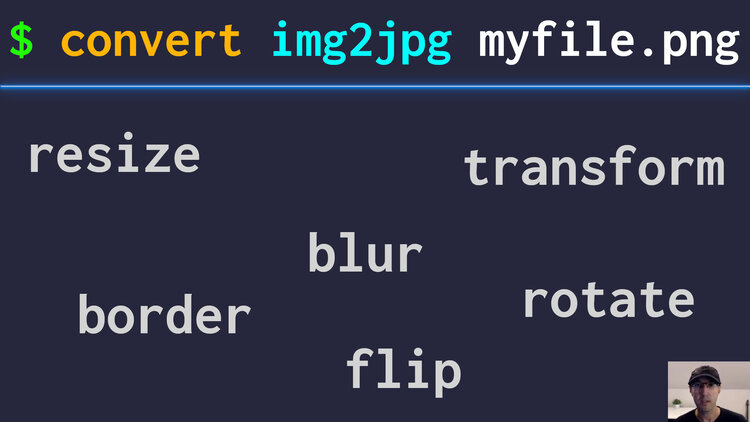
We'll go over how to convert 1 or more files to JPG, PNG and perform actions like resizing and quality adjustments.
The only dependency you’ll need to install is imagemagick which is available
on most distros of Linux and macOS with that name. For example on Arch Linux
you can run sudo pacman -Syu imagemagick or on macOS you can run brew install imagemagick.
Once you have it, you can run commands like magick myfile.png -quality 85 -strip myfile-converted.jpg to convert a PNG to JPG with 85% quality. I like
adding the -strip flag since that removes metadata (camera data, GPS
coordinates, etc.).
There’s also a -resize flag which accepts a number of different values
depending on how you want to resize it, here’s a few variants:
-resize '640x'converts it to 640 width and keeps your aspect ratio-resize '640x!'converts it to 640 width and keeps the original height-resize 'x480'converts it to 480 height and keeps your aspect ratio-resize 'x480!'converts it to 480 height and keeps the original width-resize '640x200!'converts it to 640 width and 200 height, ignores the aspect ratio-resize '50%'converts it to 50% of its original size
If you run magick --help you can find over 100 different options, it’s a
really powerful tool!
# Convert Script
Some of the flags are long and if you want to operate on multiple files at once
with patterns like *.jpg you may want to reach for creating a custom script.
That’s what I did with DotFriedRice.
I created a
convert
script where you can run commands like this:
convert img2jpg myfile.pngand it will automatically use 85% quality and write out a new file asmyfile-converted.png
It makes it easy to override options too, in case you wanted to do convert img2jpg myfile.png -quality 95 you can and it will use the value you provide.
I added shortcuts for:
img2jpgimg2pngimg2png-smallimg2jpg-small
Both -small variants set the width of the image to 1024 while keeping the
original aspect ratio which is generally good for embedding into social media
posts or blog posts.
There’s even a --prompt flag to pass into convert which will launch Walker
to let you interactively pass in flags so you can launch this from Thunar or
other tools and be able to customize the arguments on the fly.
The video below goes over using the script and a drive by of the code:
# Demo Video
Timestamps
- 0:29 – A quick demo of the script
- 3:29 – It supports passing in a pattern of files
- 4:47 – Adding a right click menu to Thunar to convert images
- 8:21 – Going over the script
- 13:05 – Handling the interactive prompt mode
- 13:39 – Handling multiple files and magick args
- 15:08 – The script will gain complexity as needed
How do you like to resize and modify images? Let me know below.