Quickly Get Your Local and Public IP Address from the Command Line
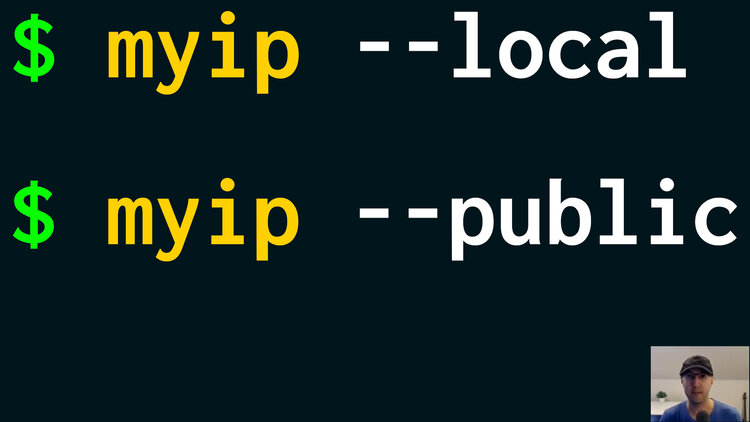
Occasionally I want to get either my local or public IP address and wanted to stop having to parse command outputs or Google for it.
Prefer video, here is it on YouTube.
By the end of this post you’ll have a myip shell script that does this:
# Prints and / or copies your local / public IP address.
#
# Examples:
#   myip         prints both your local and public IP address
#   myip -l      prints your local IP address and copies it to your clipboard
#   myip -p      prints your public IP address and copies it to your clipboard
It will work on both Linux and macOS. The final script is in my dotfiles but let’s go over some of the details here and break it apart.
Along the way we’ll play around with strace to prove the method used to
obtain your local IP address doesn’t make an external network call.
# Public IP Address
Getting your public IP address is a bit easier so let’s start here.
You can run curl https://ifconfig.me which will return nothing but your
public IP address. If you visit https://ifconfig.me in a browser you’ll get
back more info.
This isn’t a standard site, someone just happened to create a useful site to return back your IP address. I don’t own it or know what it’s logging behind the scenes but I will say I have used it for years and it’s reliable.
You can make the command more robust and focused too:
curl --fail --ipv4 --max-time 3 https://ifconfig.me
--failmakes curl fail with an exit code > 0 if we get a 400+ status code response--ipv4requests only an IPv4 address in case you have IPv6 available too--max-time 3waits up to 3 seconds before giving up in case this site or your connection is temporarily down, it avoids hanging the command
# Local IP Address
We’ll go over commands that exist on Linux. Similar concepts apply on macOS but we’ll worry about the macOS commands at the end.
You can view your system’s network routing table with:
# `ip route` and `ip ro` are shorthand forms of this command:
$ ip route list
default via 192.168.50.1 dev enp0s25 proto dhcp src 192.168.50.219 metric 100
172.17.0.0/16 dev docker0 proto kernel scope link src 172.17.0.1 linkdown
172.18.0.0/16 dev br-2426cd5c487f proto kernel scope link src 172.18.0.1 linkdown
172.19.0.0/16 dev br-fea14fac9f7b proto kernel scope link src 172.19.0.1
192.168.50.0/24 dev enp0s25 proto kernel scope link src 192.168.50.219 metric 100
192.168.50.1 dev enp0s25 proto dhcp scope link src 192.168.50.219 metric 100
On my machine (Arch Linux) enp0s25 is my default interface. I have a wired
ethernet connection and 192.168.50.1 is my gateway, going to it would load up
my router’s page through a local connection. 192.168.50.219 is my local IP
address.
On your machine, if you have wifi you’ll see something different. It might
report back wlan0 as your default, it really depends.
I also have Docker installed with a Docker Compose project running in the
background. That’s why you see 2 different br- interfaces in my output.
Docker Compose will create a new network for each project so if you have N
projects, you’ll expect to see N interfaces listed from that command. If you
see linkdown that means the project is stopped.
Using the ip command is preferred over using hostname because hostname:
- Returns back multiple IP addresses (1 for each interface)
- Has different flags on Arch (
-i) vs Debian (-I) - Has no way to get an IP address on macOS
- Requires installing an extra package on Arch where as
ipis available out of the box
Dynamically Find Your Default Interface
I didn’t want to hard code enp0s25 or expect users to provide their interface.
One of the most reliable ways to find it is by running:
$ ip route get 1.1.1.1
1.1.1.1 via 192.168.50.1 dev enp0s25 src 192.168.50.219 uid 1000
In the above case, 192.168.50.219 is my local IP address. Other devices on
this network can connect to it, such as my laptop or phone.
No matter how your system is set up (multiple network adapters, VPN, etc.) this will get the active one related to your default gateway since 1.1.1.1 is publicly accessible on the internet. Using 1.1.1.1 for this has been around for ages since it’s a well known public IP address, even before Cloudflare took it over as their primary DNS.
What’s cool about this is we’re not actually contacting Cloudflare or anyone who owns that IP address. This is finding out which interface would be used to ensure you can connect to that IP address. In this case, your default gateway would be used since it’s used to reach the public internet.
If I ran ip route get 172.18.0.3, it would return br-2426cd5c487f created
by Docker because it’s local to Docker’s bridged network and it doesn’t need to
use the default gateway.
Using strace to verify it’s not making a real external network call to 1.1.1.1
I found that command Googling around and was curious how and why it’s not making an external network call so that led me down a few minute rabbit hole with strace.
There’s a lot of output from strace so I’m only including a partial output. I’ve stripped out a bunch of lines and also a bunch of properties to make it easier to read.
# This does not make an external network request to 1.1.1.1.
$ strace -e trace=network ip route get 1.1.1.1
socket(AF_NETLINK, SOCK_RAW|SOCK_CLOEXEC, NETLINK_ROUTE) = 3
sendmsg(3, {..., inet_addr("1.1.1.1")]], iov_len=36 ...}) = 36
recvmsg(3, {..., [{nla_type=RTA_OIF}, "enp0s25"], [{nla_type=RTA_PREFSRC}, "192.168.50.219"], [{nla_type=RTA_GATEWAY}, "192.168.50.1"] ...}) = 112
AF_NETLINK is asking the Linux kernel about the route, the details in
sendmsg and recvmsg are what the kernel gives us back. Think of this as
looking at a GPS map and figuring out where you need to drive but not driving
there. We’re just seeking information.
# This does create an external network request to 1.1.1.1.
$ strace -e trace=network ping -c 1 1.1.1.1
socket(AF_INET, SOCK_DGRAM, IPPROTO_ICMP) = 3
connect(5, {sa_family=AF_INET, sin_port=htons(1025), sin_addr=inet_addr("1.1.1.1")}, 16) = 0
sendto(3, "REAL_RAW_BINARY_DATA_IN_PING_PACKET_GOES_HERE", 64, 0, {dest="1.1.1.1"}, 16) = 64
AF_INET is requesting a network packet to send data to a remote host,
connect is telling the kernel it’s associating this socket with the outside
world at 1.1.1.1 and sendto is really pressing the big red button to send
data to that destination.
It makes sense for ping to make an external connection given what it’s doing.
If you ran the above without -c 1, every time ping runs you would see new
strace output.
Parsing Your Local IP Address
Here’s the command as a reminder:
$ ip route get 1.1.1.1
1.1.1.1 via 192.168.50.1 dev enp0s25 src 192.168.50.219 uid 1000
It will always appear after “src " and we know IP addresses don’t have spaces so we can think about a regular expression to find this with the rules of “find the string that comes after ‘src ’ (with a space) and keep matching on that until you find a space, return only that”.
$ ip route get 1.1.1.1 | grep --only-matching --perl-regexp "src \K[^ ]+"
192.168.50.219
--only-matchingis-o, it returns only what matches--perl-regexpenables Perl regular expressionssrc \K[^ ]+has a few moving parts:srcis what we start to match on\Kis the Perl “Keep Out” marker which removes everything matched from the result so far, removing “src " in our case (everything to the left of\K)[^ ]+matches 1 or more characters that’s not a space, I went for this approach since this will work for both IPv4 and IPv6 addresses since the common ground is they have no spaces, we don’t need to worry about regex digits, etc.
Depending on the network, other fields could exist in the output which is why
we’re not using cut to get the 7th field separated by spaces instead of the
regex. Also ip can return JSON and you can use jq to parse this but this
has less dependencies.
macOS
This gives the same end result as the above Linux solution which is your local IP address:
$ ipconfig getifaddr "$(route -n get 1.1.1.1 | awk '/interface:/{print $2}')"
192.168.254.142
In my case the IP address is on a different subnet because I have macOS running on a company issued MBP and I have it running on an isolated guest network.
The output we need to parse is much different. This is what route -n get 1.1.1.1 returns:
   route to: 1.1.1.1
destination: default
       mask: 255.255.255.255
    gateway: 192.168.254.1
  interface: en0
      flags: <UP,GATEWAY,HOST,DONE,WASCLONED,IFSCOPE,GLOBAL>
 recvpipe  sendpipe  ssthresh  rtt,msec    rttvar  hopcount      mtu     expire
       0         0         0         0         0         0      1500         0
All awk is doing is extracting en0 from the line that has interface, then
we can pass that into ipconfig getifaddr which is what the above command
does.
# Dedicated Script
Here it is from my dotfiles, I linked to the exact version at the time of this blog post but it might change over time, always check the latest version in my dotfiles:
#!/usr/bin/env bash
# Prints and / or copies your local / public IP address.
#
# Examples:
#   myip         prints both your local and public IP address
#   myip -l      prints your local IP address and copies it to your clipboard
#   myip -p      prints your public IP address and copies it to your clipboard

set -o errexit
set -o pipefail
set -o nounset

flag="${1:-}"

local_ip() {
  if [[ "${OSTYPE}" == linux-* ]]; then
    ip route get 1.1.1.1 | grep --only-matching --perl-regexp "src \K[^ ]+"
  else
    ipconfig getifaddr "$(route -n get 1.1.1.1 | awk '/interface:/{print $2}')"
  fi
}

public_ip() {
  curl --fail --ipv4 --max-time 3 https://ifconfig.me
}

case "${flag:-}" in
-l | --local)
  local_ip | tee >(clip-copy)
  ;;
-p | --public)
  public_ip | tee >(clip-copy)
  echo
  ;;
"")
  printf "%s\n%s\n" "$(local_ip)" "$(public_ip)"
  ;;
*)
  echo "'${flag}' is an invalid flag, please use: -l or -p" >&2
  exit 1
  ;;
esac
It really just checks if you’re on Linux or not, uses the correct local IP address command and figures out which value to return based on the flag you pass in.
Using | tee >(clip-copy) ensures the output gets printed to stdout and also
copied to your clipboard. That clip-copy command is part of my dotfiles to
copy text in a cross OS compatible way. I find this handy because if I want
to know my IP address, usually I want to input it somewhere.
The demo video below shows all of the above in similar detail and even how I have this script wired up with Waybar’s network module to quickly get my local or public IP address with the click of a mouse.
# Demo Video
Timestamps
- 0:04 – Public IP address
- 0:29 – Local IP address
- 1:15 – myip script that works on Linux and macOS
- 2:20 – Using ip route get to dynamically which interface is used
- 3:47 – Using strace to prove it’s not making an external network call
- 7:34 – Parsing our local IP address
- 10:03 – The myip script breakdown
- 11:14 – Configuring a max time on curl
- 12:50 – Local IP address on macOS
- 14:01 – It’s all in my dotfiles
Do you think you’ll be using this script? Let me know below.