Wayland Compatible Annotated Screenshots with slurp, grim and satty
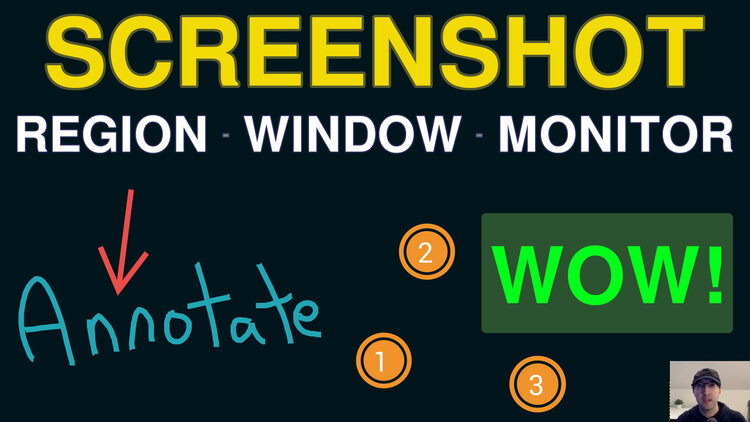
This works great with one or multiple monitors for capturing a region, specific window, specific monitor or all monitors.
I’ve been using Flameshot on Windows for years and it really opened my eyes to how nice a tool can be for quickly taking screenshots and then be able to annotate them with text, arrows, incrementing numbers and other objects.
Getting Flameshot to work in all the ways I wanted with niri turned out to be filled with a number of “yeah but…” type of scenarios and ended up being kind of convoluted to set up.
I thought about how I’ve been taking screenshots for years and it boiled down to:
- 90% of the time I pick a region of the screen to capture
- Grabbing a specific window, monitor or all monitors is a nice to have
- I rarely annotate but when I do, it’s super useful
- If annotated, I usually want to adjust the crop size of the region I took
- 99% of the time I want the screenshot copied to my clipboard, not written to disk
- I typically paste it into an email, website, Slack, X, image editor, etc.
- When saving to disk, it should be easy and predictable
niri has a built in screenshot tool but it doesn’t handle all of the above use cases. That led to finding tools to capture the screen and also annotate it. Here’s what I landed on:
- slurp to select a region of the screen
- grim to get an image from a window / screen
- satty to perform the annotations / cropping and copy to clipboard or write to disk
That’s our pipeline basically, grim will produce output (image content) that will get piped into satty and slurp is optionally used to provide a specific region of the screen to grim.
One fun ancillary feature you get from this is being able to measure a region of your screen acting as a ruler since I configured slurp to show the dimensions of the region. If you hit escape it won’t get piped into satty.
A little bit of shell scripting glues things together so the end result is a
single script that lets you pick which type of screenshot you want (region,
window, monitor-focused, monitor-all) and from there you can bind them to
a global hotkey.
With niri I have binds like this set up:
Mod+S            { spawn "dot-screenshot" "region"; }
Mod+Shift+S      { spawn "dot-screenshot" "window"; }
Mod+Ctrl+S       { spawn "dot-screenshot" "monitor-focused"; }
Mod+Ctrl+Shift+S { spawn "dot-screenshot" "monitor-all"; }
You can find the script in my dotfiles and how I’ve configured satty. Really all the script does is figure out which capture mode you want and pipes one of the mode outputs into satty for you, that’s it!
On the niri side I’ve only configured screenshot-path null to ensure its
screenshot tool never writes anything to disk since once it’s piped to satty
you get to control copying it to your clipboard, writing it to disk or escaping
to cancel it.
The video below demos how it works and how you can adjust it for other compositors besides niri since there are niri specific things being used. That’s because to get information like what the focused monitor is requires probing your compositor for information.
# Demo Video
Timestamps
- 0:45 – Measuring a region
- 1:17 – Capture a specific region
- 2:02 – Annotating with satty
- 4:01 – Cropping with satty
- 5:38 – Capture focused window
- 6:39 – Capture focused monitor
- 6:58 – Capture all monitors
- 7:45 – Capture a region across monitors
- 8:20 – niri key binds
- 8:59 – Breaking down the shell script
How are you taking screenshots on Linux? Let me know below.